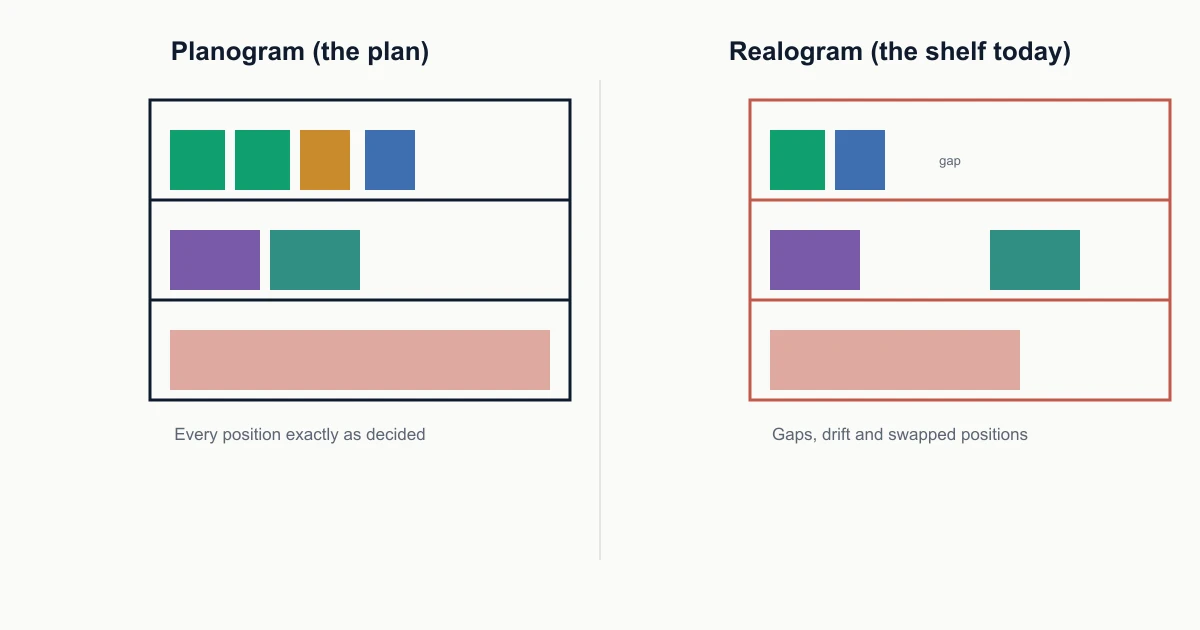
How to update a planogram for new products: collect the new item's real dimensions and expected sales, decide where it belongs in the shelf logic, free space by trimming facings or removing the weakest items nearby, check the fit, then issue a new planogram version with a clear date and a short change list for stores. The new product should look as if it was always part of the plan.
The common mistake is squeezing the newcomer into whatever gap exists. That breaks brand blocks, starves neighbours of facings and leaves stores guessing.
Before touching the plan, get the facts
For each new SKU you need:
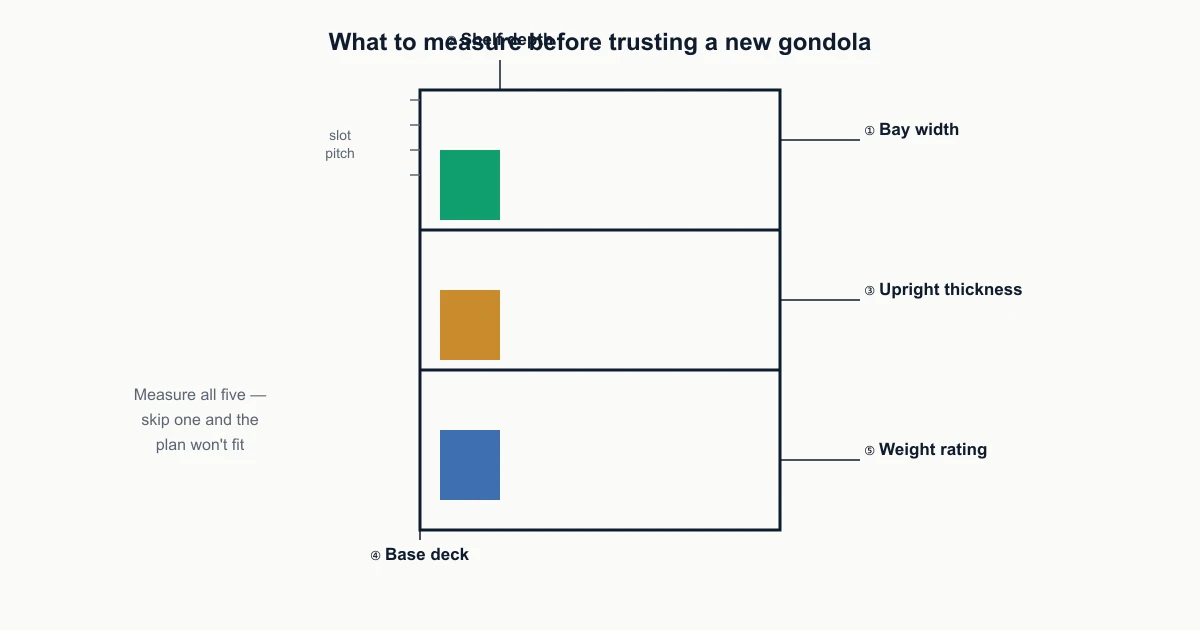
- width, height and depth from the shopper-facing front, ideally to the GS1 measurement standard
- case pack and tray or shipper dimensions, if it ships in one
- expected weekly sales (supplier forecast, or a comparable item's sales)
- launch date and delivery date to stores
- whether it replaces an existing item or adds to the range
Without dimensions, the update is guesswork. Without the delivery date, the shelf has a gap on launch day.
Find where it belongs in the shelf logic
Place the product where shoppers will look for it, following the plan's existing structure:
- In a brand-blocked fixture, it goes inside its brand's block.
- In a segment-led fixture, it goes in its segment (for example "zero sugar"), then its brand within that.
- Size order stays intact: a new single pack sits with singles, not with multipacks.
New products often get eye-level placement for the launch period, but only inside their own block.
How to update a planogram for new products when space is full
Space must come from somewhere. In order of preference:
- A product it replaces. If it is a pack change or a reformulation, it takes the old item's place.
- A delisted product. If the range review removed items, use their space first; see how to remove delisted products from a planogram.
- Extra facings on slow sellers. Items with more capacity than they need can lose a facing.
- The weakest item in the same segment. If the range must shrink, remove the item with the lowest sales and no special role.
Avoid taking space from the category's best sellers. Cutting their facings often causes out-of-stocks that cost more than the new product earns.
Check the fit on every version
Once placed, check:
- total width per shelf against usable shelf width
- height against shelf clearance (leave 1–2 cm finger space)
- capacity against a case pack plus sales between refills
Repeat for each store cluster. A product that fits a 120 cm bay may push a 90 cm version over. The shelf capacity calculator gives a quick check per shelf.
Issue a new version, not an edit
Treat the update as a new version of the planogram:
- new version number and effective date
- a short change list: added, removed, moved, facings changed
- the full plan, not just the changed shelf, so stores do not mix old and new pages
A change list such as "Shelf 3: add Fizz Mango 330 ml, 3 facings, between Fizz Lemon and Fizz Orange; Fizz Orange reduces from 4 to 3 facings" saves stores most of the work.
Brief stores before the product arrives
Stores need the plan before the stock. Send the update with:
- the date the product arrives and the date it should be on shelf
- what to do with the space if stock is late (leave it empty with the label, do not fill it)
- shelf labels for the new item
Review after four weeks
Check sales against the forecast and look for gaps. A launch that sells faster than expected needs more facings quickly; one that underperforms may lose its eye-level spot at the next review.
Let the newcomer fit the plan, not the gap
Knowing how to update a planogram for new products means respecting the shelf's logic: correct dimensions, the right block, space taken from the weakest items, a fit check per cluster and a new version with a clear change list. Do that and launches land cleanly in every store. Wikipedia's planogram entry covers the basics if your team is new to version-based plans.
FAQ
Where should a new product go on a planogram?
In the block and segment where shoppers would look for it, often at eye level during the launch period, without breaking the existing brand or size order.
How do you make room on a shelf for a new product?
Use space from items it replaces or that are delisted first, then trim facings from slow sellers, and only then remove the weakest item in the segment.
Should I send stores the full planogram or just the change?
Both: the full new version so nothing is mixed up, plus a short change list so stores know exactly what to move.
What if the new product arrives late?
Leave its labelled space empty and record it. Filling the gap with neighbouring products hides the problem and breaks the plan.